10/10/25 - It’s been so long since we’ve last seen you!
10/24/22 - In searching for the perfect day, Timmy discovers something unexpected!
9/04/22 - That childhood favorite is back in a new Timmy video.
7/31/22 - It’s time for my second new Just Like Timmy video!
7/12/22 - Why not check out my new YouTube animation channel, Just Like Timmy!
|
|
 |
|
The following page was printed from RemoteCentral.com:
| Topic: | Upload DVD to YouTube This thread has 8 replies. Displaying all posts. |
|
| Post 1 made on December 16, 2008 at 02:40 |
|
Joined: Posts: | October 2008 4 |
|
|
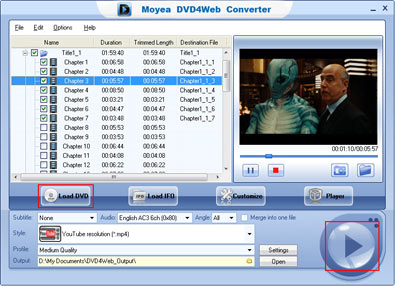
In this thread, I want to share some of my experience on uploading DVD movie to utube and DVD editing skill. Hope it helps! Tool needed: Moyea DVD4Web Converter [Link: flash-video-mx.com]YouTube accepts video in AVI, WMV, MOV, MPEG, 3GP and MP4 but DVD or VOB. Then how to upload your DVD to the YouTube for sharing? You may do a close second thing for the first important target to convert DVD to MP4 or any format above. There are a lot of DVD to YouTube resolution MP4 converter products but I am talking about one for free. Moyea DVD4Web Converter is to convert DVD to MP4. The converter supports to convert DVD to MP4 without size limitation but YouTube allows video in just 10 minutes. DVD4Web Converter can trim the video into clips for you and you may upload separately one by one. This is how to convert DVD to MP4 in one-step: Open the program and click "Load DVD" to load your DVD in. Unfold the Video_TS folder and select the title and chapter to convert. Select YouTube resolution (*.mp4) in "Style", and set your output folder in "Output". Click the big button to start the conversion, and done. If you want to merge the non-adjacent chapters, get the “Merge into one file” checked. 
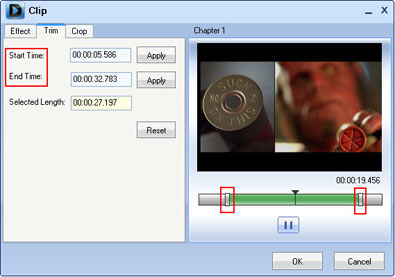
Get a 10 minute video clip from the DVD movie Use the video trimming function offered by the program: Click Customize>Trim, adjust the "Start Time", "End Time" and then click the "Apply" immediately behind. Or, you can drag the handles on the slide for a rough position and then adjust the start and end time precisely in "Start Time", "End Time". 
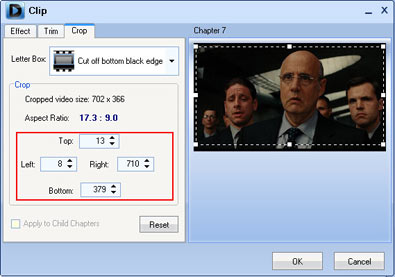
Get rid of the black margins on the movie Use the video cropping function offered by the program: Drag the dot frame or select in the "Letter Box" for a section. Set the values for "Top", and "Left", etc. for preciseness. Click “OK” to confirm. 
|
|
| Post 2 made on December 16, 2008 at 10:59 |
|
Joined: Posts: | November 2005 1,177 |
|
|
you're downloading hellboy onto youtube? hmmm, seems a little sketchy. and who would want to WATCH it at youtube quality??? lol i'd like to know how to convert my DVD's so i can watch them on my apple TV.
|
|
| Post 3 made on December 16, 2008 at 19:44 |
|
Joined: Posts: | October 2005 4,680 |
|
|
No, that is NOT the best way to convert DVD to MP4. VLC will do that for free. And uploading DVD's to Youtube is illegal unless you are the rightful copyright owner or have permission from them.
|
LET'S GO BUFFALO!!! |
|
| Post 4 made on December 20, 2008 at 14:56 |
|
Joined: Posts: | May 2001 2,288 |
|
|
On December 16, 2008 at 11:59, Stealth X said...
i'd like to know how to convert my DVD's so i can watch them on my apple TV.
Do the usual ways not work for you?
|
|
| Post 5 made on December 20, 2008 at 20:07 |
|
Joined: Posts: | November 2005 1,177 |
|
|
On December 20, 2008 at 15:56, Spiky said...
Do the usual ways not work for you? what are the usual ways? sorry, the only program i've tried is DVD shrink, and thats never worked for me. i seem to download the movie into a folder on my PC but cant figure out what to do with it from there in order to view it with anything.
|
|
| Post 6 made on December 21, 2008 at 01:19 |
|
Joined: Posts: | May 2001 2,288 |
|
|
Ooh, I expected you had a Mac when you said AppleTV. But anyway, I think this is still valid since there is now a Win version: handbrake (encoding) vlc (playback) To view "it with anything": I would expect DVD Shrink to behave similar to OSX programs I've used from the limited reading I've done on it. (Mac user here, haven't really looked at it) But take a folder you've already ripped with DVD Shrink and play it with vlc, it should have a Video_TS folder inside. Use the Open Disc dialog in vlc and pick the TS folder to open (or just choose the overall movie folder you ripped), not a specific file. Make sure "Use DVD Menu" is selected in the Open dialog before clicking ok/open. It should figure out what can be played and give you a mouse controlled DVD playback interface. Try Fullscreen mode direct on your TV if you are hooked up. And to convert for AppleTV, use handbrake. If the Win version is the same, it will ask for a movie folder upon opening the application. Pick one, and choose the proper MPEG4/H.264 settings for AppleTV compatibility.
|
|
| Post 7 made on December 21, 2008 at 16:03 |
|
Joined: Posts: | October 2005 4,680 |
|
|
VLC for encoding as well. Don't even need to use Shrink. Open VLC, do File-Open Disc, then choose "Stream/Save" and go to settings. From there, you can set it to encode to any video format you want.
|
LET'S GO BUFFALO!!! |
|
| Post 8 made on December 21, 2008 at 18:47 |
|
Joined: Posts: | November 2005 1,177 |
|
|
thanks guys, i'll check it out! edit:just did a search and found this site... is this what i'm looking for? should i DL the top one (Windows self-extracting package (15.6MB)? [Link: videolan.org] thanks again.
Last edited by Stealth X
on December 21, 2008 18:55.
|
|
| Post 9 made on December 21, 2008 at 20:40 |
|
Joined: Posts: | October 2005 4,680 |
|
|
|
 |
Before you can reply to a message... |
You must first register for a Remote Central user account - it's fast and free! Or, if you already have an account, please login now. |
Please read the following: Unsolicited commercial advertisements are absolutely not permitted on this forum. Other private buy & sell messages should be posted to our Marketplace. For information on how to advertise your service or product click here. Remote Central reserves the right to remove or modify any post that is deemed inappropriate.
|
|